Google Chromebook

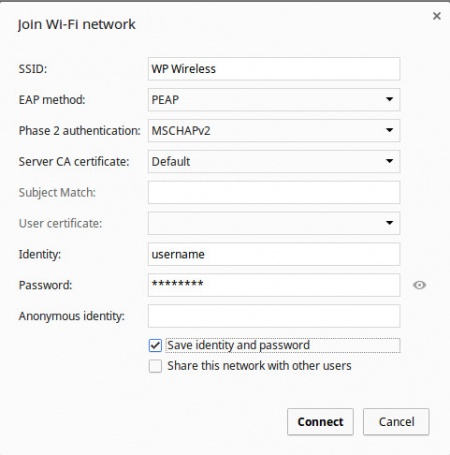
Note For Server CA Certificate you will need to select Do not validate instead of default. Picture to be updated shortly.
- Select WP Wireless [or WP Wireless (5Ghz)] from the available Wireless Networks
- Configure the Following Settings:
- SSID: WP Wireless
- EAP Method: PEAP
- Phase 2 authentication: MSCHAPV2
- Server CA certificate: Do not validate
- Identity: Your WP Connect Username
- Password: Your WP Connect password
- Anonymous identity: (Leave this field Blank)
- Click Connect
- Accept any Certificate Warnings
- You should now have internet access. Contact Help Desk Request if you cannot connect.
