Webex
This article provides information on utilizing Webex. If you are looking for instructions for Cisco Webex Calling App or information on utilizing a Cisco Phone, please see our new documentation.
What is Webex?
Webex is Cisco’s video and phone conferencing platform. It allows individuals to make, receive, and schedule phone calls, video calls, and conferences from any device. Webex meetings are highly immersive, providing HD video, wireless content sharing and much more. Webex Meetings and Events can have up to 1000 participants. Webex meeting would be more collaborative whereas Webex events are more ideal for presentations and a larger audience.
Changes to Webex - 2021
Important information about changes to Webex at WPUNJ:
A Unified WebEx App
By years end, the current WebEx Teams app and WebEx Meetings app will be fully replaced by a single app simply called WebEx.
For now, WebEx Meetings will stay in place and anyone with Web Teams should automatically be upgraded to WebEx.
WebEx Calling in Trial
We are currently testing WebEx calling in limited trial testing. WebEx calling turns the WebEx application into a fully featured phone experience, using your WPU extension either on or off campus.
For specific information about the calling testing, or if you have questions and concerns, please contact the HelpDesk.
Using the Webex App (Desktop)
Installation
The full application is available through the Software Center on University imaged machines.
For personal machines, go to https://www.webex.com/downloads.html to install full application for your platform.
After installing, you will need to sign in to the application:
- Select Sign in
- Enter your full WPU email address
- Sign in again with WPU login and Duo authentication.
Interface Overview

Help
Spaces
Navigation Menu
Profile and Preferences
Status
Search
Filters
Start a Conversation, Make a Call, or Add a Contact
Devices
Activities
Messages — Messages are where you chat with colleagues. We keep these messages secure so you can feel confident sharing your work ideas in Webex.
People — see who's in the space, or if you're a moderator you can add people to the space.
Content — find and see all your shared files, photos, links and whiteboard content.
Schedule — create a meeting from the space or get a list of meetings already scheduled for the space.
Call/Meet
Audio — make an audio call to a person or to people in a Space.
Application Update Available

Webex Meetings
The Cisco Webex Meetings application will no longer be used within the next year. The below information is legacy info relating to the use of the previous Webex Meetings app.
Webex Meetings Application
Additionally, Webex has the Outlook add-in available for download, from their website for other machines. www.wpunj.edu/webex, you can find the Webex desktop application as well as the outlook add-in on the Downloads page.
- Open Outlook Desktop Client.
- You can utilize the Webex Add-in from the Home tab of Outlook within the Mail or Calendar sections of Outlook, or within scheduled or new appointments or meetings.
- From a new or existing appointment, select Add Webex Meeting and select Add Webex Meeting from the drop down
- Outlook will connect to Webex to generate a meeting invitation
- You will see text added to the meeting invite, but will not see the meeting information until the appointment is saved
- You can start your Webex from the Join meeting button in the meeting appointment a few minutes before your meeting is scheduled to begin.
-
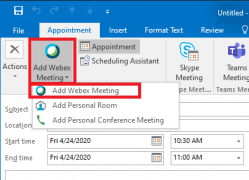 Webex Add-in in Outlook Appointment
 -
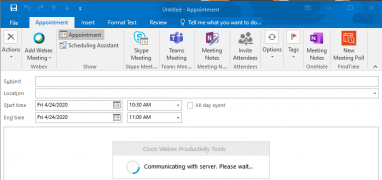 Webex meeting being generated
 -
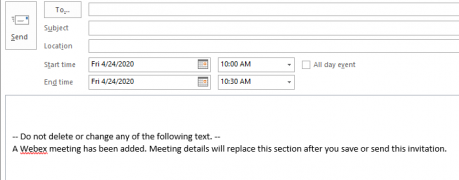 Webex information added to appointment
 -
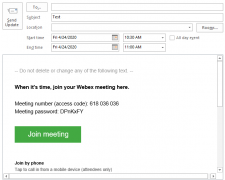 Webex Meeting information within the appointment


You can schedule and start meetings right from the Webex Application.
- Click Schedule and you can fill out the Outlook Meeting Invitation.
- Click Start to Start an upcoming meeting.
-
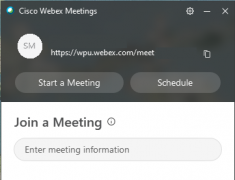 Webex Application
 -
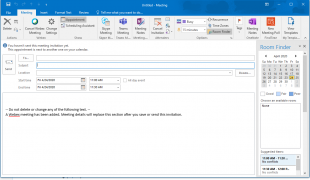 Webex Schedule Meeting
 -
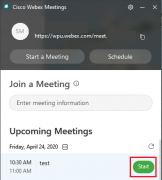 Webex Start Meeting


Useful tools
We recommend testing Webex meetings and events if you have never used it before. Please see this Webex Help Center. https://help.webex.com/en-us/
- By default, whoever creates the meeting is the Host. You can change role by right-clicking on the participant.
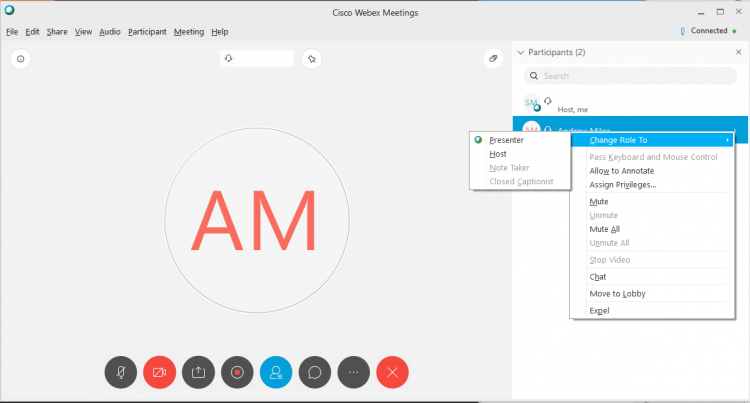
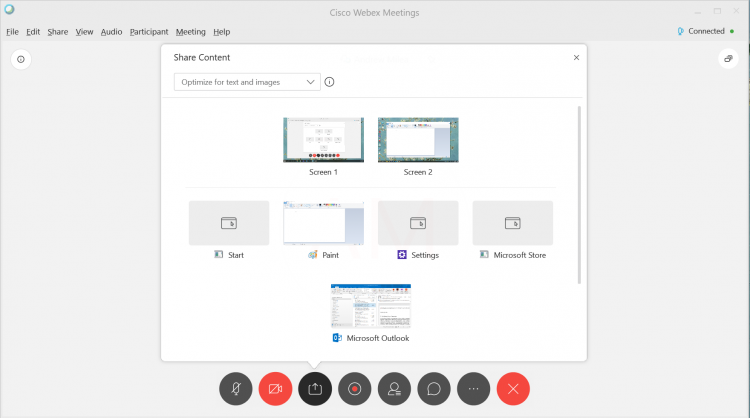
- Screen sharing can be done by clicking the share button.
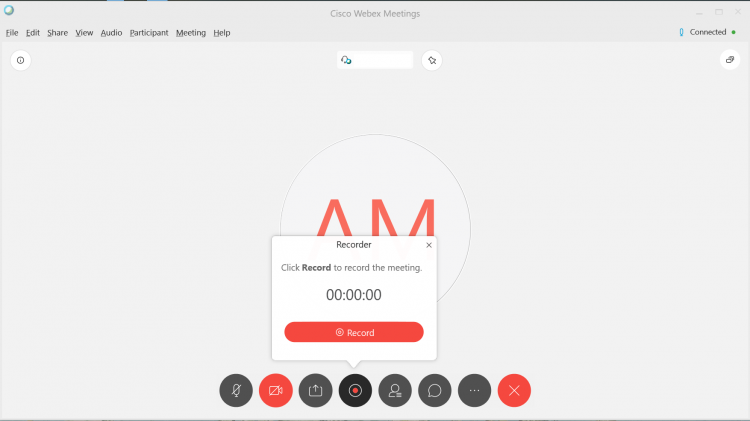
- Record your meeting using the record button.
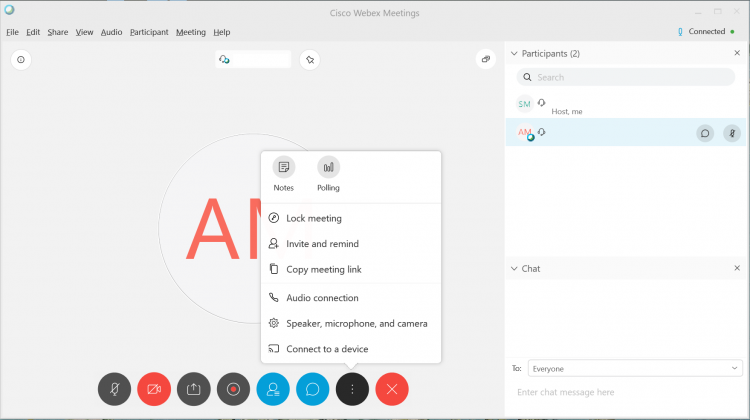
- Invite more attendees and other options by clicking the 3 vertical dots.
- Ensure participants are on mute as soon as they enter the meeting so that the main presenter can be uninterrupted upfront. If necessary, the user can unmute themselves at a later time or the meeting host can unmute them.
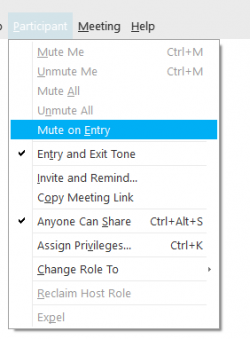
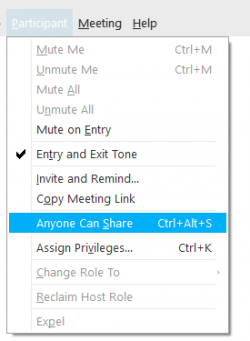
- Avoid unauthorized screen/application sharing by unchecking “Anyone can share”. If necessary, the host can designate specific users as presenters in the course of the meeting.
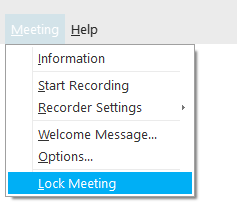
- Once all the participants are in the meeting, the host can lock the meeting. Anyone trying to join after the meeting room has been locked will be placed in the lobby and will require authorization to enter the meeting.
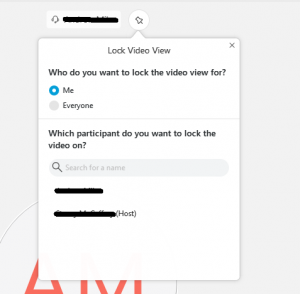
- To avoid users being distracted by other participants, pin the video of the presenter for everyone in the meeting.
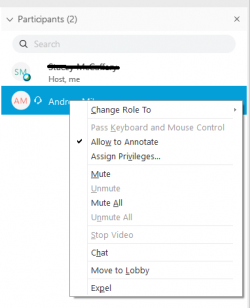
- In the event a participant is disruptive there are several actions the host can take. These are available by right clicking on the user in the participant panel. The key ones are Mute, Stop Video, and in extreme cases Expel the participant. If the room is locked, the user will not be able to return, unless authorized by the host.


Webex Meetings Mobile App
You can download the Cisco Webex Meetings App on your Phone. Please note these screencaps are on an iPhone and will be slightly different for other phones and operating systems.

- Search for WebEx in the App Store.
- Select GET
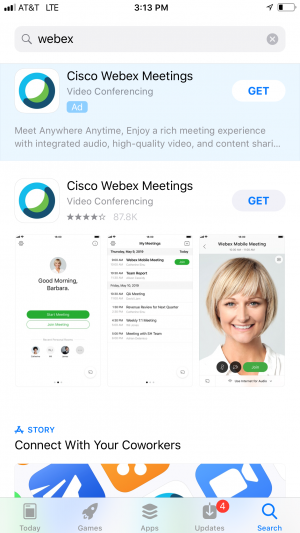
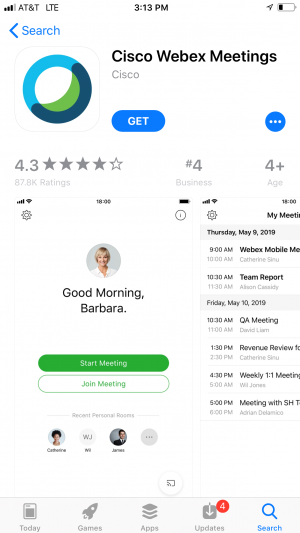
- Select GET again to download the app.
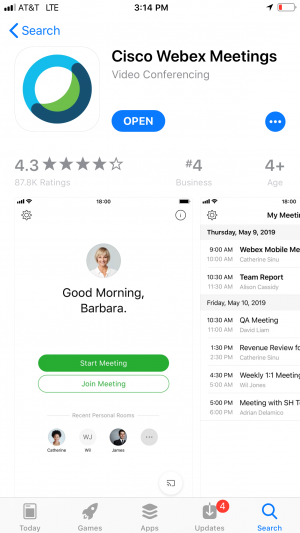
- Open App.
- Select I Accept
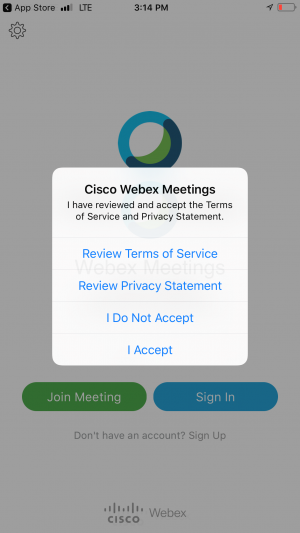
- Select Sign in
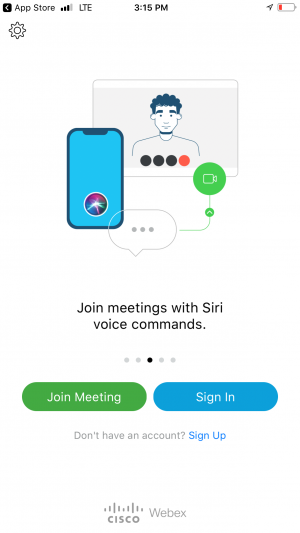
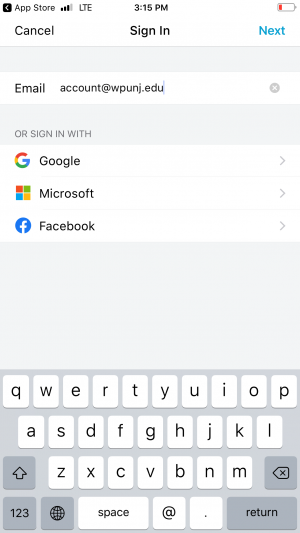
- Sign in with your full email address.
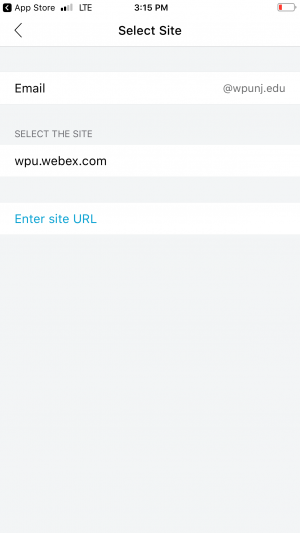
- Enter Site URL.
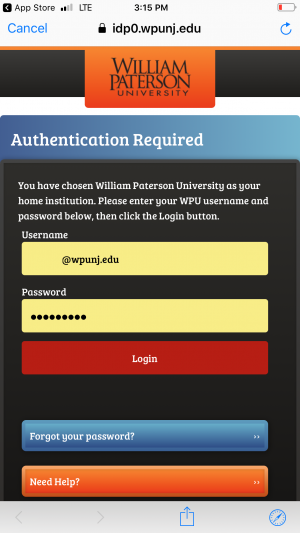
- Login with WPU Credentials.
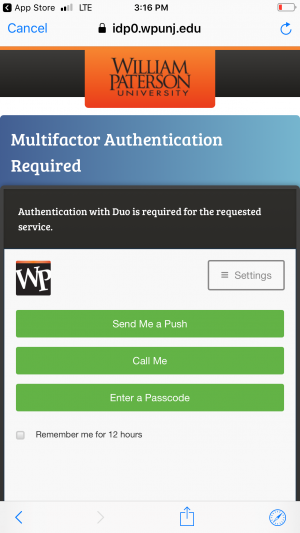
- Authenticate with Duo.
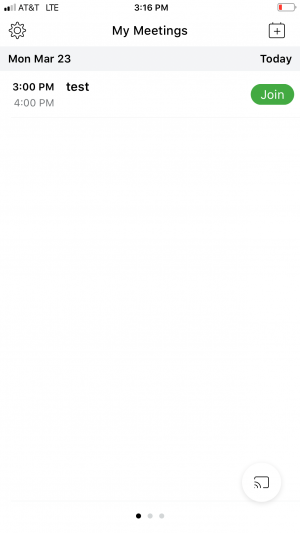
- If you have a meeting already set, you can select Join.
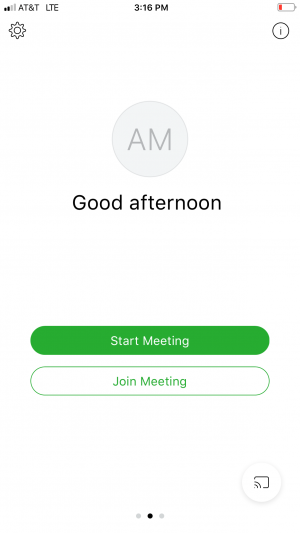
- Select Join Meeting.
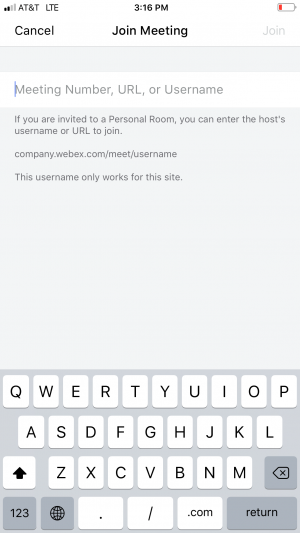
- Enter Meeting Number which can be found in your email.


Cisco Webex Roomkit information
If you are utilizing a room with a Cisco WebEx Roomkits, please visit the Roomkit page for more information.
Cisco 8841 Office Phone Overview


