Bitlocker: Difference between revisions
No edit summary |
|||
| Line 9: | Line 9: | ||
In the event that your computer has encountered a Bitlocker Recovery Scenario, unlock it by following the steps below | In the event that your computer has encountered a Bitlocker Recovery Scenario, unlock it by following the steps below | ||
==Windows 10== | |||
# On a separate device, log into WPConnect & Search for Bitlocker. | # On a separate device, log into WPConnect & Search for Bitlocker. | ||
# Click the Bitlocker link to access the bitlocker recovery. Log in with your University Credentials. | # Click the Bitlocker link to access the bitlocker recovery. Log in with your University Credentials. | ||
| Line 16: | Line 18: | ||
#*In the event that the Recovery Key fails, please contact the IT Help Desk with your Recovery ID. | #*In the event that the Recovery Key fails, please contact the IT Help Desk with your Recovery ID. | ||
# After the computer boots up it will re-encrypt. The following window will pop up after encryption is complete:<br>[[File:Bitlocker-After-Recovery.png|500px]] | # After the computer boots up it will re-encrypt. The following window will pop up after encryption is complete:<br>[[File:Bitlocker-After-Recovery.png|500px]] | ||
==Windows 11== | |||
# On a separate device, log into account.microsoft.com | |||
# Click on Devices > select your device name | |||
# Click View Bitlocker Keys | |||
If your device is not listed, please contact the Help Desk. | |||
[[Category:Software Guides]] | [[Category:Software Guides]] | ||
[[Category:Help Desk]] | [[Category:Help Desk]] | ||
Revision as of 10:33, 2 June 2025
About
Bitlocker encrypts your hard drive(s), thus protecting any sensitive data in the event your computer is stolen. Bitlocker only protects data at rest from an offline attack. For example, it should protect you if a malicious user stole your hard drive and attempted to connect it to another machine to steal data. However, it can not protect against somebody gaining access via stolen credentials.
Bitlocker Recovery
Bitlocker Recovery scenarios can be triggered for a number of reasons; read here for a complete list of what causes bitlocker recovery scenarios.
When a bitlocker recovery is triggered, the following screen is displayed

In the event that your computer has encountered a Bitlocker Recovery Scenario, unlock it by following the steps below
Windows 10
- On a separate device, log into WPConnect & Search for Bitlocker.
- Click the Bitlocker link to access the bitlocker recovery. Log in with your University Credentials.
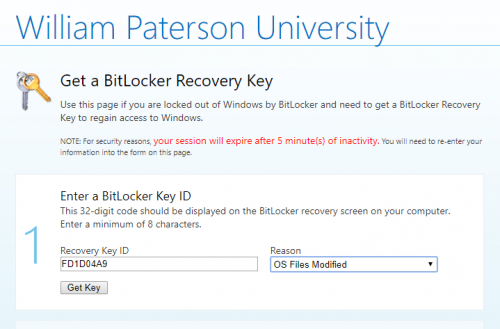
- Enter the first 8 characters of the Recovery ID as well as the reason and click "Get Key"
- The key will be shown beside the number 2
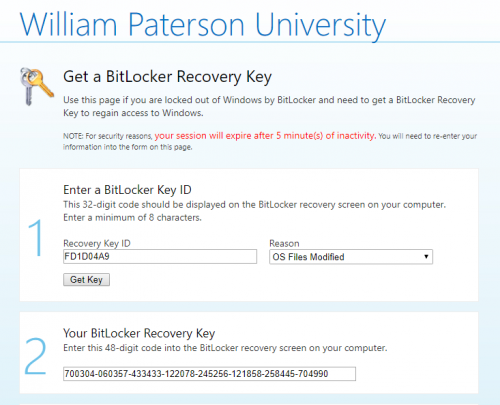
- Type the Recovery Key onto your device
- In the event that the Recovery Key fails, please contact the IT Help Desk with your Recovery ID.
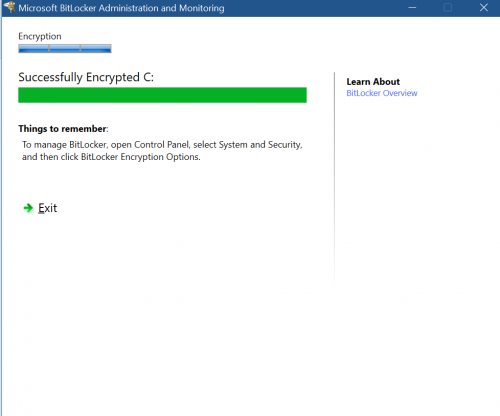
- After the computer boots up it will re-encrypt. The following window will pop up after encryption is complete:


Windows 11
- On a separate device, log into account.microsoft.com
- Click on Devices > select your device name
- Click View Bitlocker Keys
If your device is not listed, please contact the Help Desk.