WP Connect
Accessing WPConnect
Access WPConnect at wpunj.edu/wpconnect
Reset your Password
- Click the Forgot Account/Password or Need Login Help?

- Click I Forgot My Password.

- Check off I'm not a robot and then select Begin Password Reset.

- Fill out form with your Social Security Number and Date of Birth.

- Answer Security Questions.
- Have an email sent to your personal email on file or use the Duo Passcode Option if you have Duo enabled.

- If you are using your personal email on file, please look for Password Reset email and reset your password.

- This is now your password for WPConnect, Blackboard, email, and other WP systems.
Find your Self-Service Banner PIN
- Users can now see their Self-Service Banner PIN in WPConnect by going to My Profile (in the drop-down menu) by clicking their name.
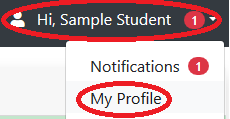
- By default the PIN is hidden, select the Show button to display the Self-Service Banner PIN.

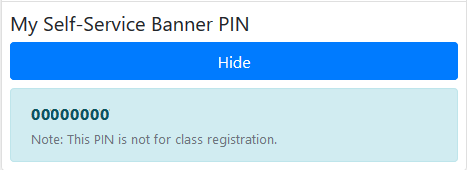
- To hide the PIN after reviewing, select the Hide button.


How to turn off WPConnect Portal Animations
- Login into WPconnect
- Click your name top right corner to display a drop-down menu.
- Click My Profile on the drop down menu
- Under WPConnect User Settings, set the WPConnect Animations option to Off.
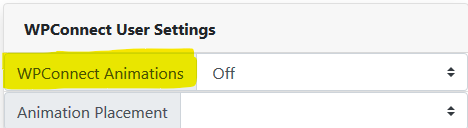
- Click Save Changes at the bottom of the My Profile window.
