ArcGIS
ArcGIS Pro is available for installation on University imaged computers as well as personally owned computers. The process is different for each scenario.
ArcGIS Pro for University Managed Computers
To request ArcGIS Pro on a university managed employee or lab computer, please submit a ticket request in Web Help Desk. Installation can be initiated via the Software Center. Use of ArcGIS Pro on University managed computers requires an ArcGIS Online account. To get access to ArcGIS Online a Help Desk ticket must be submitted by a faculty member under the 'Software' category. There are a limited amount of licenses. Access to ArcGIS Online also allows access to ArcGIS Pro.
ArcGIS Pro/Online for Personally Owned Computers
ArcGIS Online is a key component and an integral part of the Esri ArcGIS system. It is a content management system comprised of applications and templates for creating interactive maps. ArcGIS Online users can share maps within an organization or the world through ready-to-use tools that are available for the web, smartphones and tablets. Data, delivered as maps and information feeds, are accessible by other web developers and GIS analysts who can share its contents through the same system. ArcGIS Online is mainly used by GIS professionals to publish information online – including geographic information, cartography, analytics and workflows.
Users can use ArcGIS Online to extend the capabilities of ArcGIS for Desktop, ArcGIS for Server, ArcGIS applications, and ArcGIS APIs and Runtime SDKs. Users can also add many types of maps, layers, applications, tools and files to ArcGIS Online.
ArcGIS Pro can be downloaded for personally owned computers from https://wpunj.maps.arcgis.com/.
Downloading ArcGIS Pro from ArcGIS Online
- Navigate to https://wpunj.maps.arcgis.com/.
- Click the button that says William Paterson University.
- Sign in with your WPU credentials.
- At the top of the page, click your user name and click My settings.
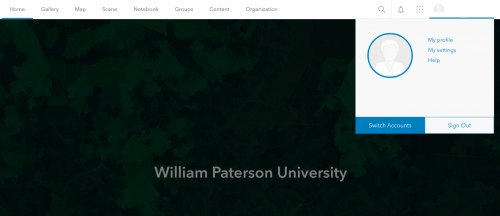
- On the My settings page, click the Licenses tab.
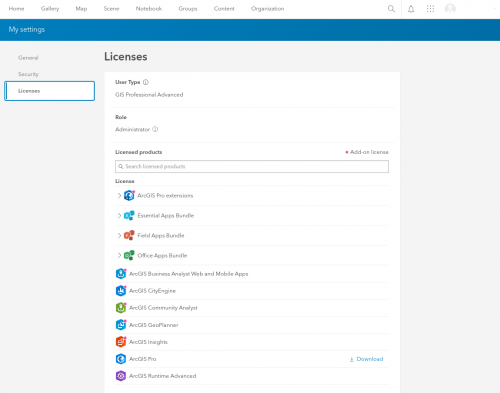
- Next to ArcGIS Pro, click Download.
- In the Download window, review the Language setting. If you want to download a localized version of ArcGIS Pro, change the setting to the language you want.
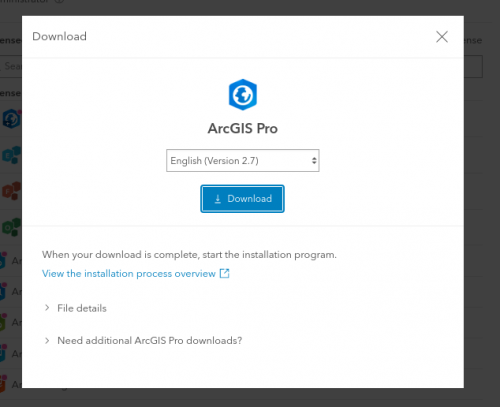
- Click Download.


Instructions provided by https://pro.arcgis.com/en/pro-app/latest/get-started/download-arcgis-pro.htm