Webex: Difference between revisions
Mccafferys (talk | contribs) |
Mccafferys (talk | contribs) No edit summary |
||
| Line 3: | Line 3: | ||
== Using the Full Application == | == Using the Full Application == | ||
The full application is available through the Software Center on University imaged machines. For personal machines, go to https://www.webex.com/downloads.html to install full application. Please note it is useful to have the full application installed but not required. It is best to schedule | The full application is available through the Software Center on University imaged machines. For personal machines, go to https://www.webex.com/downloads.html to install full application. Please note it is useful to have the full application installed but not required. It is best to schedule meetings from the web version. | ||
== Using the Web Version == | == Using the Web Version == | ||
| Line 18: | Line 18: | ||
#Click "Start Meeting" when you are ready. <div class="toccolours mw-collapsible mw-collapsed" style="width:300px">[[File:Webex7.jpg | 750px]]</div> | #Click "Start Meeting" when you are ready. <div class="toccolours mw-collapsible mw-collapsed" style="width:300px">[[File:Webex7.jpg | 750px]]</div> | ||
==Starting a meeting from Outlook == | |||
Once a meeting is scheduled, it will appear on your Outlook calendar. You can start the meeting from the calendar event. <div class="toccolours mw-collapsible mw-collapsed" style="width:300px">[[File:Webex6-3.PNG | 750px]]</div> | |||
[[File:Webex6-2.jpg]] | [[File:Webex6-2.jpg]] | ||
[[File:Webex7-0.jpg]] | [[File:Webex7-0.jpg]] | ||
Revision as of 10:18, 20 March 2020
What is Webex?
Webex is Cisco’s video conferencing platform. It allows individuals to make, receive, and schedule video calls and conferences from any device. Webex meetings are highly immersive, providing HD video, wireless content sharing and much more.
Using the Full Application
The full application is available through the Software Center on University imaged machines. For personal machines, go to https://www.webex.com/downloads.html to install full application. Please note it is useful to have the full application installed but not required. It is best to schedule meetings from the web version.
Using the Web Version
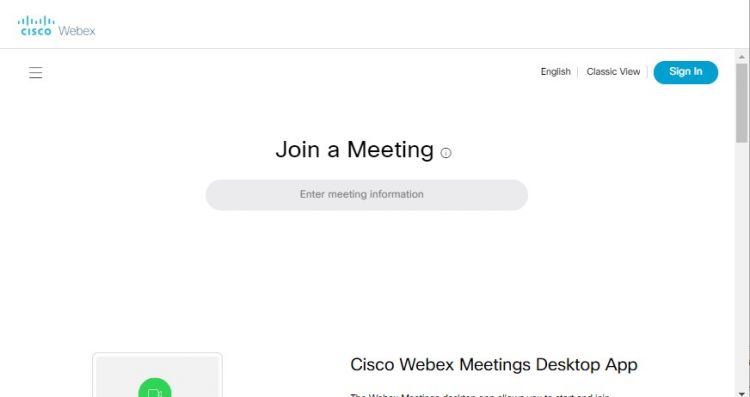
From your web browser, Webex is available at www.wpunj.edu/webex.
- Click Sign in
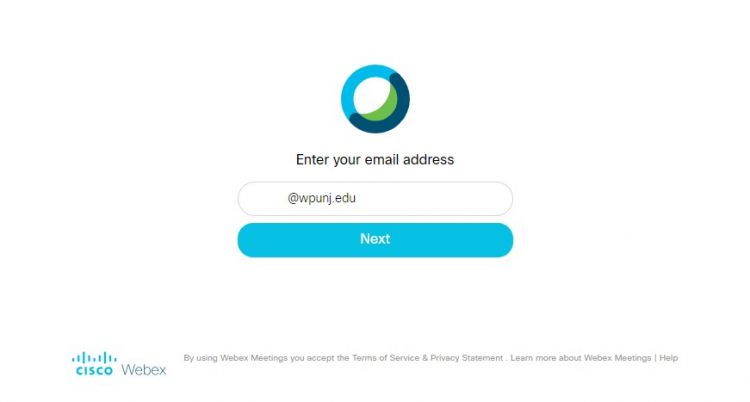
- Enter your full WPU email address
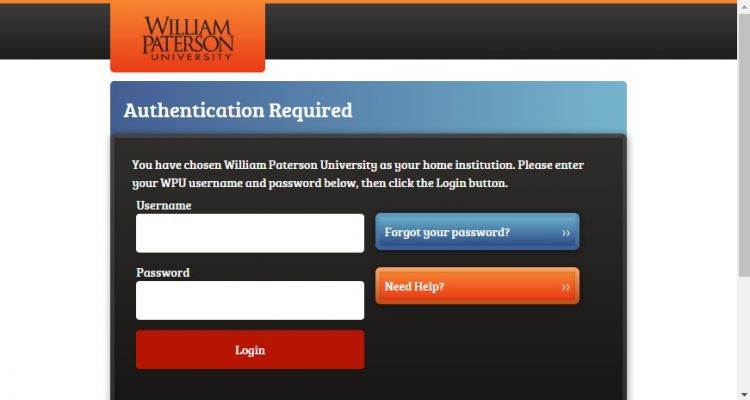
- Sign in again with WPU login and Duo authentication.


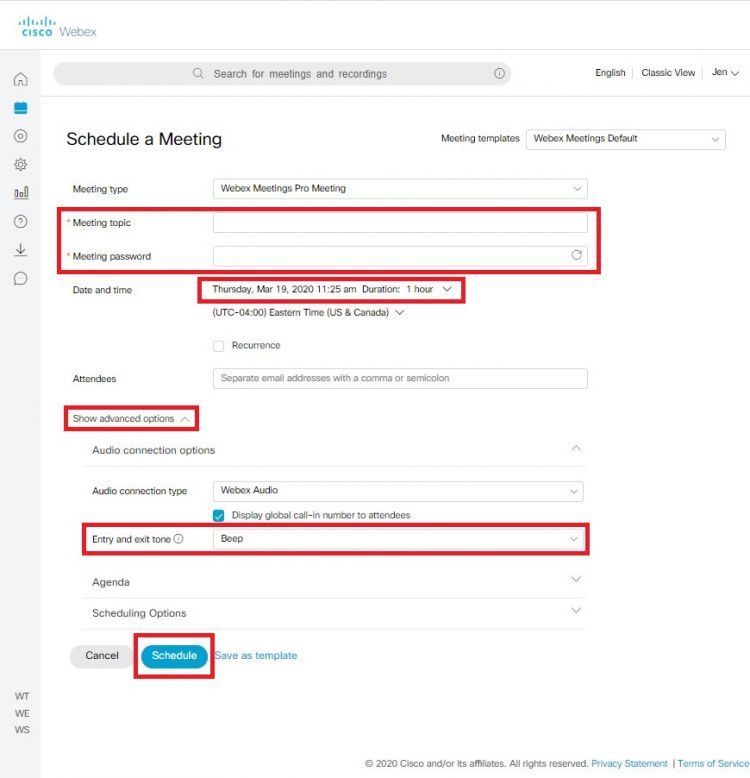
Scheduling a Meeting from the Web
- Click "Schedule" and fill required sections.

Starting a Meeting from the Web
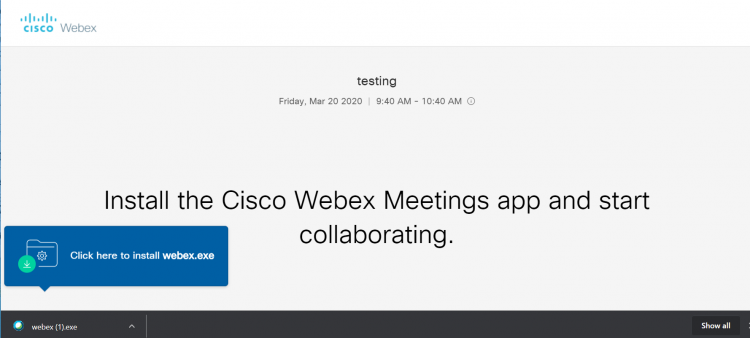
- Click "Start a Meeting" and follow prompt to install webex.exe.
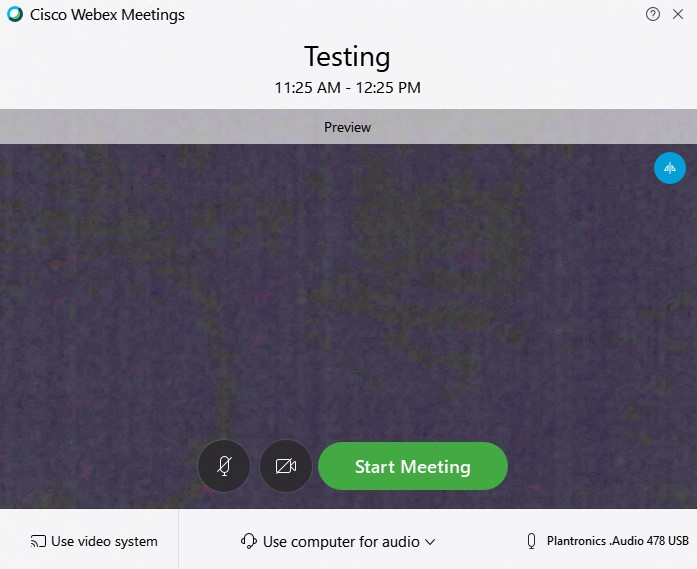
- Click "Start Meeting" when you are ready.

Starting a meeting from Outlook
Once a meeting is scheduled, it will appear on your Outlook calendar. You can start the meeting from the calendar event.


