Windows 10 Wireless: Difference between revisions
Jump to navigation
Jump to search
No edit summary |
m Speroj moved page Windows 10 to Windows 10 Wireless: Adding Wireless to Wireless Pages |
(No difference)
| |
Latest revision as of 11:27, 10 October 2019
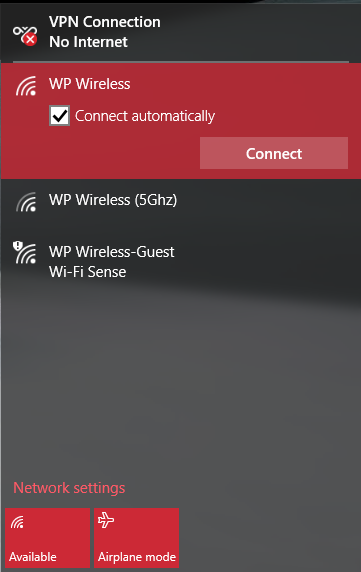
- Click the wireless icon in task bar at the lower right hand of the screen.

- Select WP Wireless from available wireless networks, and click Connect.
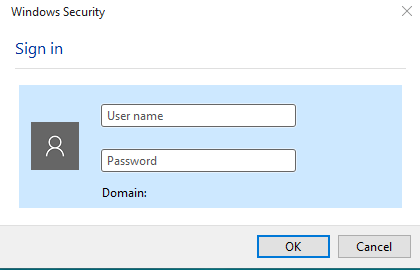
- You will then be prompted for your User Name and Password. Enter in your WP Connect User Name and Password. (Same as Email/Blackboard)
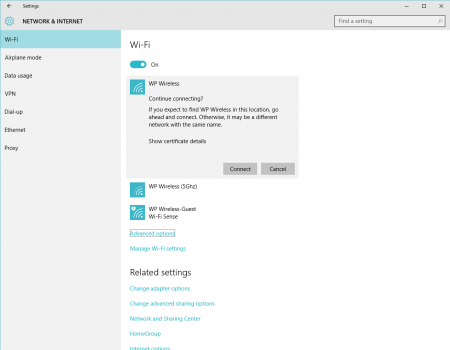
- After entering a valid User Name and Password, you will see a prompt asking to continue connecting. Click Connect.
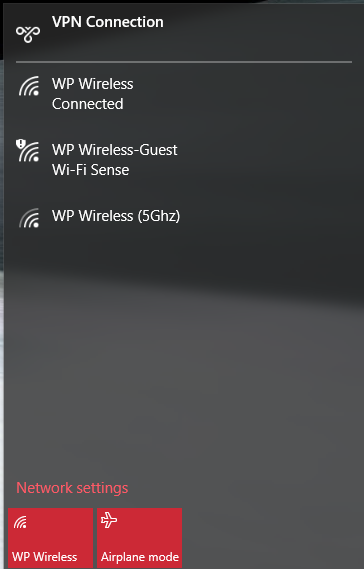
- After a successful connection you will see Connected under WP Wireless.


Please contact Help Desk Request if you are unable to connect.