SPSS: Difference between revisions
Jump to navigation
Jump to search
No edit summary |
|||
| Line 15: | Line 15: | ||
===SPSS 23 for Home Use Installation Instructions=== | ===SPSS 23 for Home Use Installation Instructions=== | ||
# Obtain and Download the Home Use Files from Information Technology - | # Obtain and Download the Home Use Files from Information Technology - http://help.wpunj.edu | ||
# Copy the files onto your computer | # Copy the files onto your computer | ||
# Close all applications. This installation requires a restart. | # Close all applications. This installation requires a restart. | ||
Revision as of 15:02, 15 November 2016

SPSS Statistics is a software package used for statistical analysis.
SPSS for Home Use
SPSS for Home Use is available to faculty/staff members.
Please note that SPSS 23 for Mac OS X requires:
OS X 10.9 (Mavericks) or better.
Apple Java 2014-001 ( http://support.apple.com/kb/dl1572)
Apple Java must be installed prior to installing SPSS 23
SPSS 23 for Home Use Installation Instructions
- Obtain and Download the Home Use Files from Information Technology - http://help.wpunj.edu
- Copy the files onto your computer
- Close all applications. This installation requires a restart.
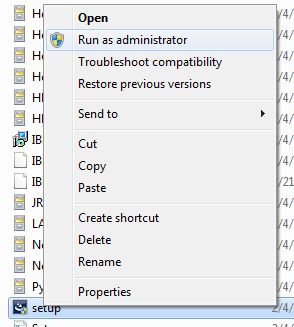
- Right click setup.exe > Run as administrator
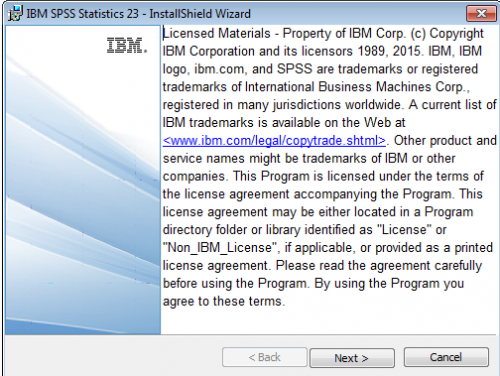
- Click Next to the license agreement
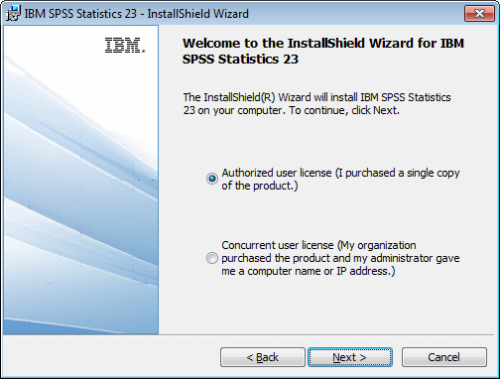
- At the Welcome screen, click "Authorized user license"
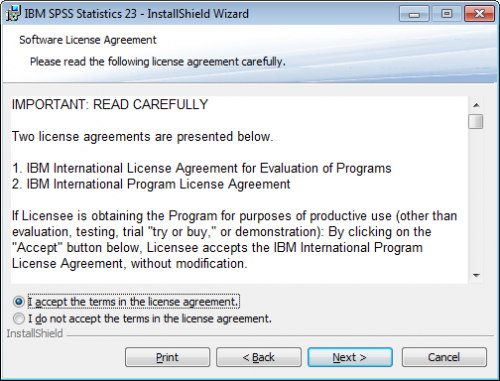
- Accept the EULA, click Next
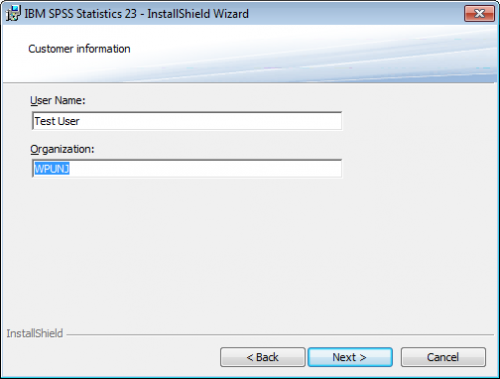
- Fill in your user name; Organization "WPUNJ"
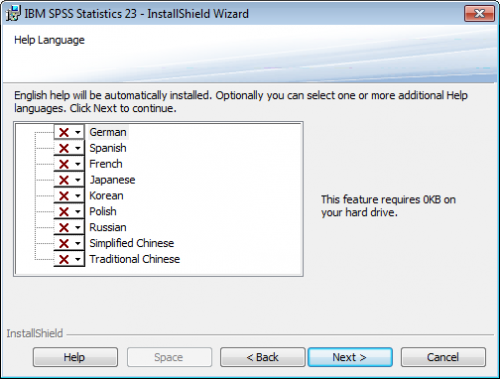
- Choose additional Help languages if applicable, Click Next
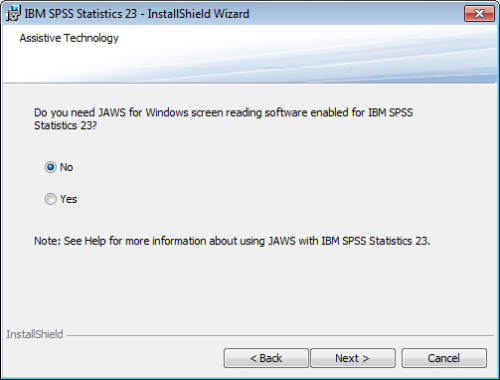
- Choose "No" if you do not use JAWS, click Next
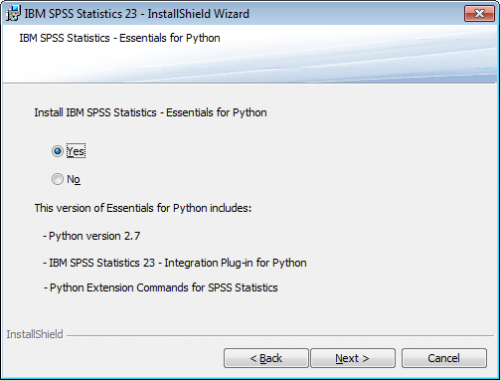
- Choose "Yes" to install Essentials for Python, click Next
- Accept the license and click Next
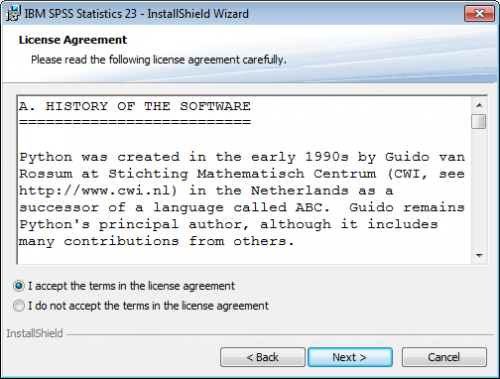
- Accept the international program license and click Next
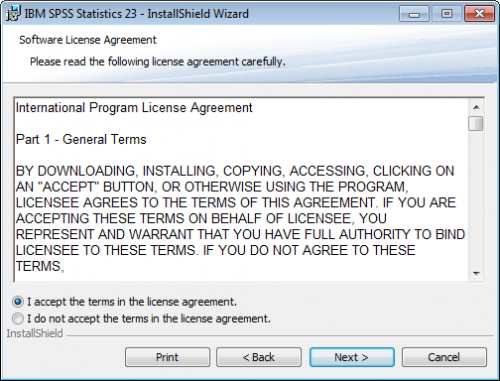
- Keep the default installation folder and click Next
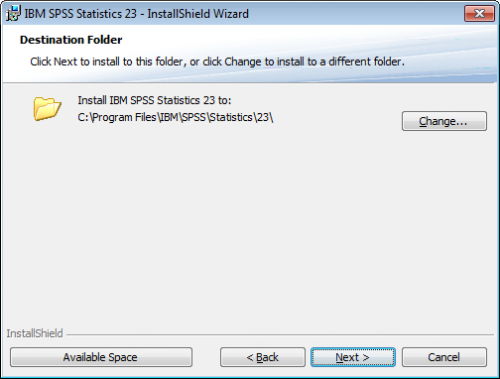
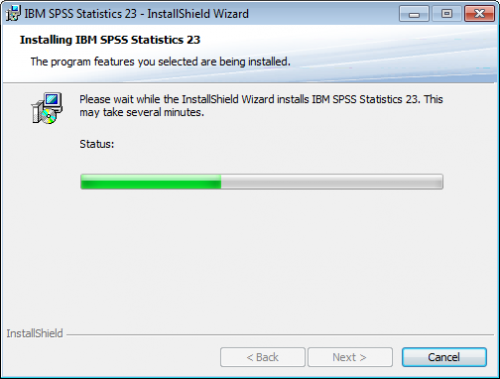
- Click Install
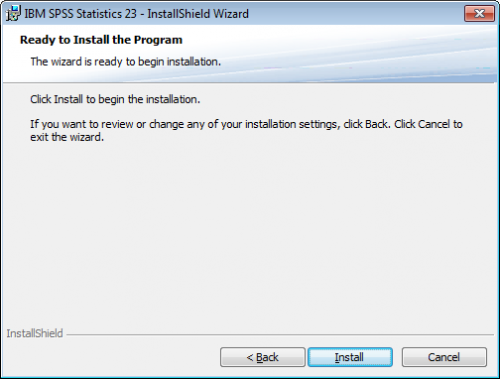
- Wait
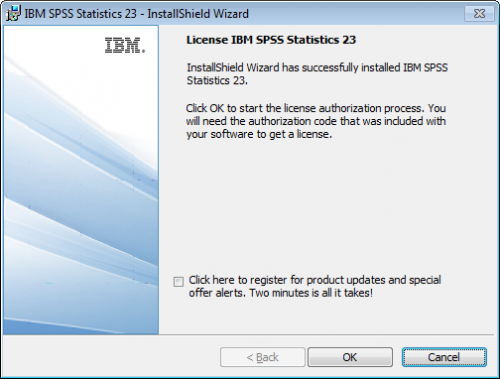
- Click OK to start the license authorization process
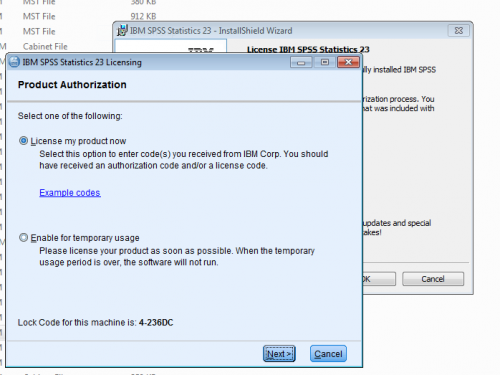
- Select "License my product now" and click Next
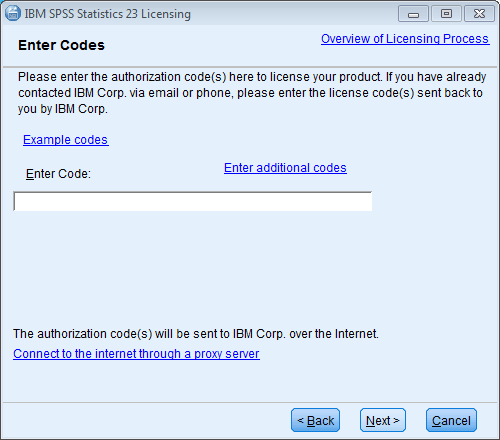
- Enter the authorization code you received from WPUNJ IT
- After authorization succeeds, click Next
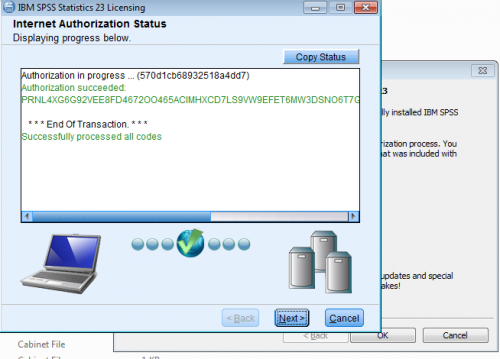
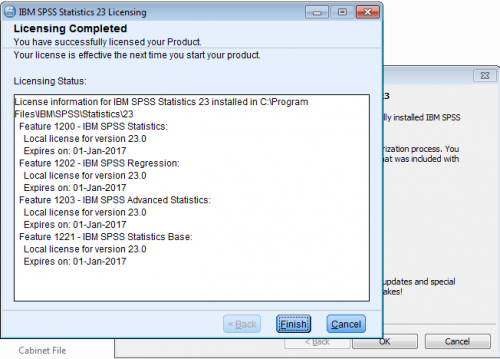
- Click Finish
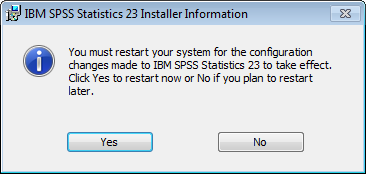
- Click Yes to restart your computer


Resources
- SPSS for Windows tutorial from the Department of Psychology, University of Toronto
- SPSS tutorial from California State University, Los Angeles
- VideoService "youtubehd" not recognized.