Windows 7: Difference between revisions
Jump to navigation
Jump to search
No edit summary |
No edit summary |
||
| Line 1: | Line 1: | ||
<ol> | |||
<li>Select '''WP Wireless''' | |||
<li>Enter your '''WP Connect''' Username and Password | |||
<div class="toccolours mw-collapsible mw-collapsed" style="width:450px"> | <div class="toccolours mw-collapsible mw-collapsed" style="width:450px"> | ||
| Line 6: | Line 7: | ||
</div> | </div> | ||
<li>Click '''Connect''' when presented with the Security Warning | |||
<div class="toccolours mw-collapsible mw-collapsed" style="width:470px"> | <div class="toccolours mw-collapsible mw-collapsed" style="width:470px"> | ||
| Line 12: | Line 14: | ||
</div> | </div> | ||
<li>You may have to enter your Username and Password again | |||
<li>You should now be connected to WP Wireless. Please contact [https://help.wpunj.edu/helpdesk/ Help Desk Request] if you are unable to connect. | |||
</ol> | |||
[[Category:Network Services]] | [[:Category:Network Services|Network Services]] | ||
Revision as of 13:50, 13 December 2012
- Select WP Wireless
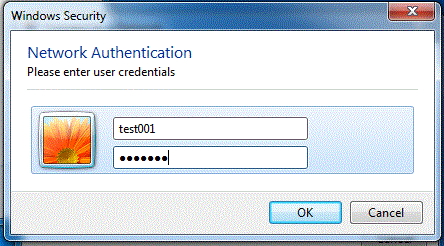
- Enter your WP Connect Username and Password
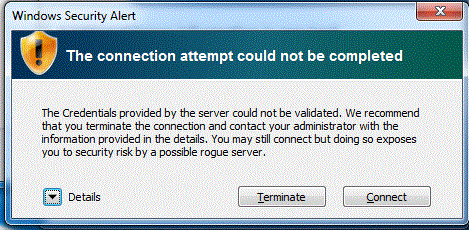
- Click Connect when presented with the Security Warning
- You may have to enter your Username and Password again
- You should now be connected to WP Wireless. Please contact Help Desk Request if you are unable to connect.

