Cisco WebEx Room Kits: Difference between revisions
Jump to navigation
Jump to search
Mccafferys (talk | contribs) |
Mccafferys (talk | contribs) |
||
| Line 24: | Line 24: | ||
| | | | ||
|} | |} | ||
#In the | #In the '''To''' field (or '''Invite Attendees''' for Office 365) add the users you would like to invite. | ||
#Click | #Click '''Send''' in the Outlook app or '''Save''' in Office 365. | ||
===How to start the meeting in the room=== | ===How to start the meeting in the room=== | ||
Revision as of 09:48, 11 September 2020
Hosting a Zoom Meeting on Cisco Webex Room Kit Devices
How to schedule the meeting:
- On either the Outlook client or Office 365 go to Calendar -> Schedule a new meeting.
- Click on Add a Zoom meeting
| Office 365
|
Outlook Desktop Client
|


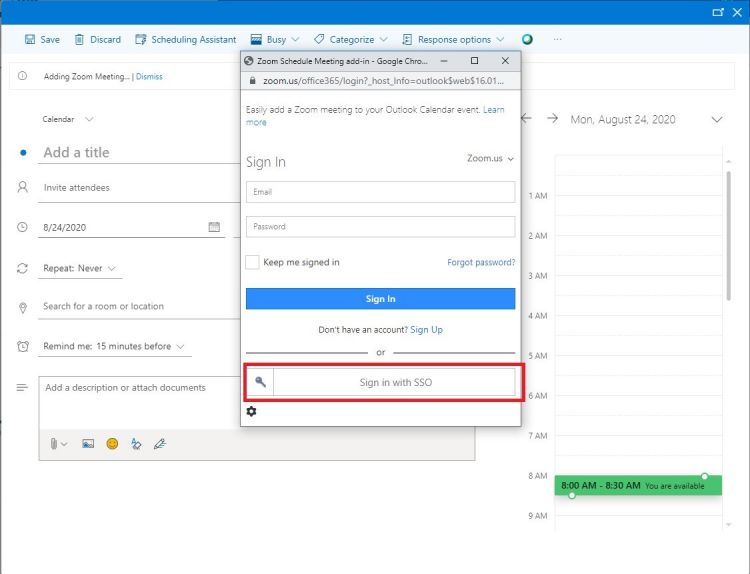
The first time scheduling a Zoom meeting, you may be asked to sign into your Zoom account.
- Enter your full e-mail address: username@wpunj.edu
- There is no need to enter a password.
- Click on Sign in with SSO
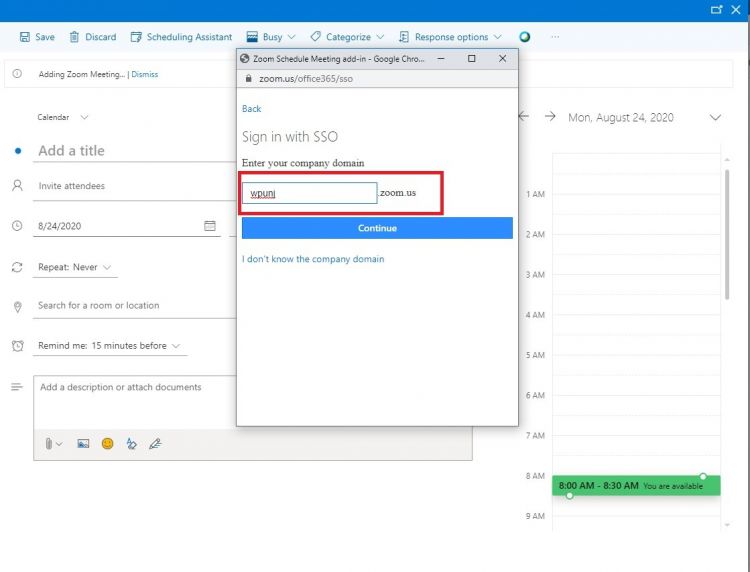
- Enter wpunj in the domain box.
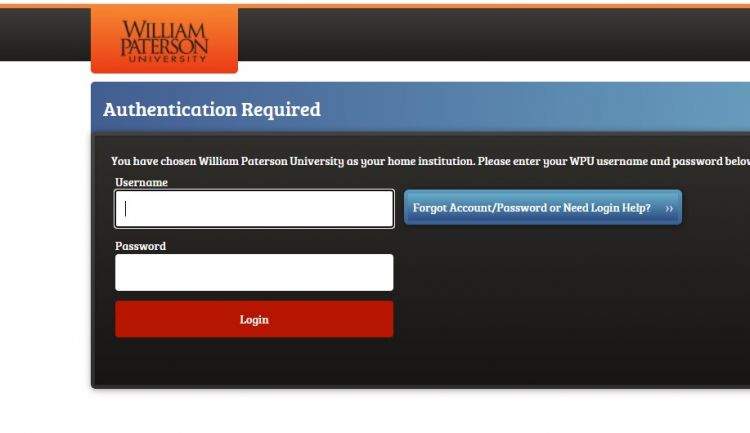
- Follow the University Single Sign On.
- Under Location select the room you would like to use - ex: VY Boardroom.


| Office 365
|
Outlook Desktop Client
|


- In the To field (or Invite Attendees for Office 365) add the users you would like to invite.
- Click Send in the Outlook app or Save in Office 365.