SPSS: Difference between revisions
No edit summary |
|||
| (108 intermediate revisions by 9 users not shown) | |||
| Line 1: | Line 1: | ||
[[image: | [[image:SPSS_26.png|right]] | ||
==SPSS for Home Use== | ==SPSS for Home Use== | ||
SPSS for Home Use is available to faculty/staff members. | SPSS for Home Use on a personal computer is available to faculty/staff members and students. | ||
IBM SPSS installations require the software to be downloaded through WPconnect and then activated with an authorization code. | |||
===Download SPSS to Personal Machine=== | |||
'''Uninstall any older versions of SPSS you have on your computer before installing latest version.''' | |||
Students or employees seeking access to install SPSS for use on personal computers should use the following process: | |||
#Login to WPconnect. | |||
#Visit the Students tab (or Employees tab for employees) and search for or click on the My Home Use Software List - Student (found in the Technology Resources and Services section.) | |||
#Find the 'IBM SPSS 31' (or the highest release listed) section and download the install file for your platform. (Windows 64-bit or macOS.) | |||
===SPSS for Home Use On Windows:=== | |||
# '''Uninstall''' any older versions of SPSS you have on your computer before installing latest version. | |||
# Install SPSS 31 by double-clicking the install file and following the on-screen prompts. | |||
#Click '''Launch License Wizard''' when prompted. <div class="toccolours mw-collapsible innercollapse" style="width:300px">[[File:spss2.1.PNG | 500px]]</div> | |||
#Click '''Next''' through steps. | |||
#Click '''Authorized user license'''<div class="toccolours mw-collapsible innercollapse" style="width:300px">[[File:spss2.3.PNG | 500px]]</div> | |||
#Find activation key which can be found in the My Home Use Software section of WPConnect and enter code. | |||
#Hit '''next''' to complete install. | |||
===SPSS | ===SPSS for Home Use on a Mac:=== | ||
Please note that SPSS 31 for macOS requires: | |||
macOS Sonoma 14.0 or higher.<br> | |||
#Download pkg from WPConnect. | |||
#Navigate to Downloads folder. | |||
# | #Double-click ISSCAS0_1.0_Other_Operating_Sy.pkg to run installer. | ||
# | #When the installer has completed SPSS 31 can be found in Launchpad. Reboot recommended. | ||
# | #Open SPSS | ||
#Click '''Launch License Wizard''' when prompted. <div class="toccolours mw-collapsible innercollapse" style="width:500px"> [[File:SPSS Mac1.png|500px|]] </div> | |||
#Click '''Authorized user license'''<div class="toccolours mw-collapsible innercollapse" style="width:500px"> [[File:SPSS Mac2.png|500px]] </div> | |||
#Find activation key which can be found in the My Home Use Software section of WPConnect and enter code. | |||
#Click '''Next''' through steps. | |||
# | |||
# | |||
# Click | |||
# Click | |||
# | |||
# | |||
==Resources== | ==Resources== | ||
* [http://www.psych.utoronto.ca/courses/c1/spss/page1.htm SPSS for Windows tutorial from the Department of Psychology, University of Toronto] | * [http://www.psych.utoronto.ca/courses/c1/spss/page1.htm SPSS for Windows tutorial from the Department of Psychology, University of Toronto] | ||
* [http://www.slideshare.net/itstraining80/spss-statistics-how-to-use-spss SPSS tutorial from California State University, Los Angeles] | * [http://www.slideshare.net/itstraining80/spss-statistics-how-to-use-spss SPSS tutorial from California State University, Los Angeles] | ||
* {{#ev: | * {{#ev:youtube|i8lmUkB4lag|600}} | ||
[[category:Software Guides]] | [[category:Software Guides]] | ||
[[category:TC Portal]] | [[category:TC Portal]] | ||
==SPSS on Campus== | |||
If you need SPSS on university owned and managed computer, the software is available for installation via the [[Software Center]]. | |||
===SPSS Commuter License for a University Managed Computer=== | |||
If SPSS on a university imaged computer needs to be used off campus and without a VPN connection, there is an option to use the Commuter License. This needs to be initially set up while on campus or connected to VPN. The commuter license can have a maximum duration of up to 30 days. | |||
# Go to '''File''' - '''Manage License''' towards the bottom of the menu <div class="toccolours mw-collapsible mw-collapsed" style="width:450px">[[File:SPSS-01.PNG | 300px]]</div> | |||
#Select '''Launch Commuter Utility Tool''' <div class="toccolours mw-collapsible mw-collapsed" style="width:450px">[[File:SPSS-02.PNG | 450px]]</div> | |||
#Chage '''Duration (Days)''' to the appropriate time frame (30 days max). Select '''Check Out'''. You can now use SPSS without being connected to the campus network. <div class="toccolours mw-collapsible mw-collapsed" style="width:600px">[[File:SPSS-03.PNG | 600px]]</div> | |||
# Select "Check In" when you are ready to use SPSS on campus again. | |||
Latest revision as of 19:57, 9 February 2026

SPSS for Home Use
SPSS for Home Use on a personal computer is available to faculty/staff members and students. IBM SPSS installations require the software to be downloaded through WPconnect and then activated with an authorization code.
Download SPSS to Personal Machine
Uninstall any older versions of SPSS you have on your computer before installing latest version.
Students or employees seeking access to install SPSS for use on personal computers should use the following process:
- Login to WPconnect.
- Visit the Students tab (or Employees tab for employees) and search for or click on the My Home Use Software List - Student (found in the Technology Resources and Services section.)
- Find the 'IBM SPSS 31' (or the highest release listed) section and download the install file for your platform. (Windows 64-bit or macOS.)
SPSS for Home Use On Windows:
- Uninstall any older versions of SPSS you have on your computer before installing latest version.
- Install SPSS 31 by double-clicking the install file and following the on-screen prompts.
- Click Launch License Wizard when prompted.
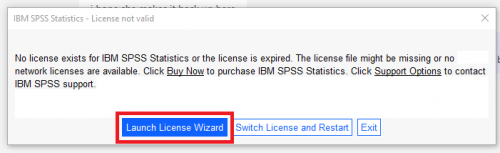
- Click Next through steps.
- Click Authorized user license
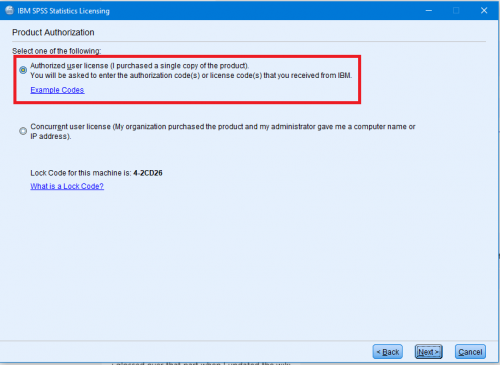
- Find activation key which can be found in the My Home Use Software section of WPConnect and enter code.
- Hit next to complete install.


SPSS for Home Use on a Mac:
Please note that SPSS 31 for macOS requires:
macOS Sonoma 14.0 or higher.
- Download pkg from WPConnect.
- Navigate to Downloads folder.
- Double-click ISSCAS0_1.0_Other_Operating_Sy.pkg to run installer.
- When the installer has completed SPSS 31 can be found in Launchpad. Reboot recommended.
- Open SPSS
- Click Launch License Wizard when prompted.
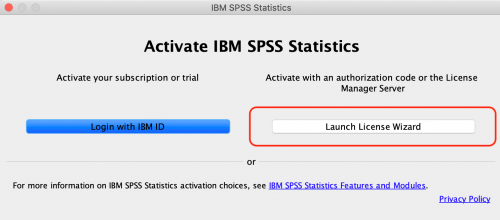
- Click Authorized user license
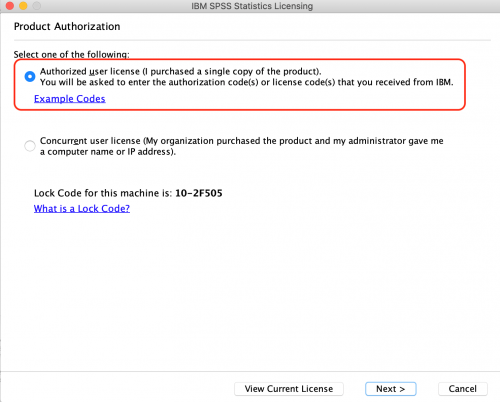
- Find activation key which can be found in the My Home Use Software section of WPConnect and enter code.
- Click Next through steps.


Resources
- SPSS for Windows tutorial from the Department of Psychology, University of Toronto
- SPSS tutorial from California State University, Los Angeles
SPSS on Campus
If you need SPSS on university owned and managed computer, the software is available for installation via the Software Center.
SPSS Commuter License for a University Managed Computer
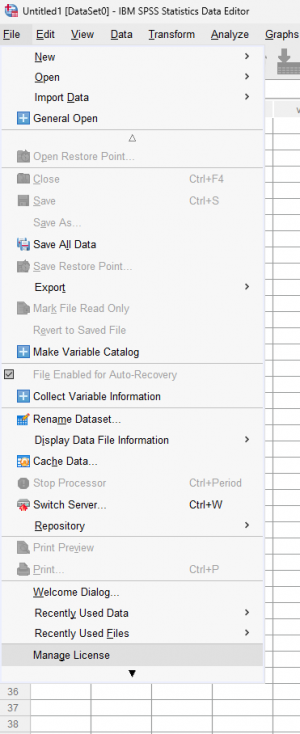
If SPSS on a university imaged computer needs to be used off campus and without a VPN connection, there is an option to use the Commuter License. This needs to be initially set up while on campus or connected to VPN. The commuter license can have a maximum duration of up to 30 days.
- Go to File - Manage License towards the bottom of the menu
- Select Launch Commuter Utility Tool
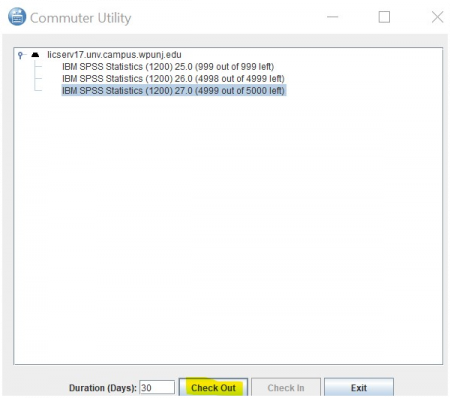
- Chage Duration (Days) to the appropriate time frame (30 days max). Select Check Out. You can now use SPSS without being connected to the campus network.
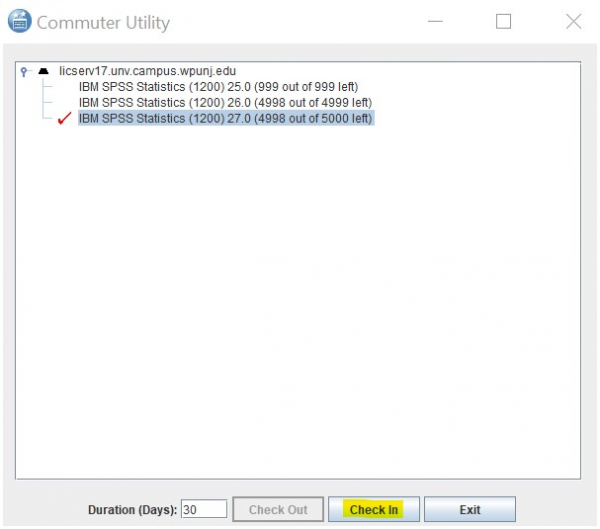
- Select "Check In" when you are ready to use SPSS on campus again.


