Print to PDF: Difference between revisions
Jump to navigation
Jump to search
No edit summary |
No edit summary |
||
| (One intermediate revision by the same user not shown) | |||
| Line 1: | Line 1: | ||
== | Student printers can only print 8.5x11 documents. Some documents, such as a powerpoint slide, may be of a different size. Printing to PDF is a way you can save an existing document as a PDF file to troubleshoot printing issues. | ||
==Option 1: Save/Export to PDF== | |||
# Under files, click export | # Under files, click export | ||
# Click create PDF/XPS document | # Click create PDF/XPS document | ||
| Line 10: | Line 12: | ||
</gallery> | </gallery> | ||
=== | ===Option 2: Print to PDF using Microsoft Print to PDF=== | ||
# Under files, select Print | # Under files, select Print | ||
# Select the printer "Microsoft Print to PDF" | # Select the printer "Microsoft Print to PDF" | ||
Latest revision as of 16:19, 9 March 2020
Student printers can only print 8.5x11 documents. Some documents, such as a powerpoint slide, may be of a different size. Printing to PDF is a way you can save an existing document as a PDF file to troubleshoot printing issues.
Option 1: Save/Export to PDF
- Under files, click export
- Click create PDF/XPS document
- Save document and print the new file.
-
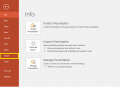 Under files, click export
 -
Click create PDF/XPS document
-
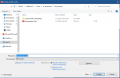 Save Document and print the new file


Option 2: Print to PDF using Microsoft Print to PDF
- Under files, select Print
- Select the printer "Microsoft Print to PDF"
- Click "Print" and save the newly-created PDF. Then print the file.
-
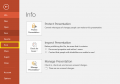 Under files, select Print
 -
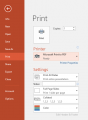 Select the printer "Microsoft Print to PDF"
 -
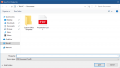 Click "Print" and save the newly-created PDF. Then print the file.


