WP Connect: Difference between revisions
Jump to navigation
Jump to search
No edit summary |
No edit summary |
||
| Line 17: | Line 17: | ||
#Click My Profile on the drop down menu<br>[[File:WPC_SSB_PIN1.png]]<br><br> | #Click My Profile on the drop down menu<br>[[File:WPC_SSB_PIN1.png]]<br><br> | ||
#Under WPConnect User Settings, set the WPConnect Animations option to Off.<br />[[File:WPC_UserSettings_Animations.png]] | #Under WPConnect User Settings, set the WPConnect Animations option to Off.<br />[[File:WPC_UserSettings_Animations.png]] | ||
#Click Save Changes at the bottom of the My Profile window. | |||
Revision as of 12:07, 20 November 2019
Access WPConnect at https://www.wpunj.edu/wpconnect
Find your Self-Service Banner PIN
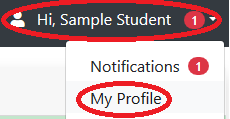
- Users can now see their Self-Service Banner PIN in WPConnect by going to My Profile (in the drop-down menu) by clicking their name.
- By default the PIN is hidden, select the Show button to display the Self-Service Banner PIN.

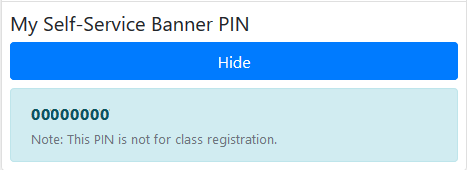
- To hide the PIN after reviewing, select the Hide button.


How to turn off WPConnect Portal Animations
- Login into WPconnect
- Click your name top right corner to display a drop-down menu.
- Click My Profile on the drop down menu
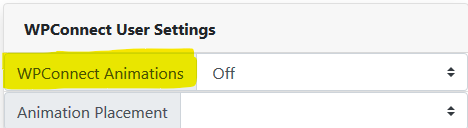
- Under WPConnect User Settings, set the WPConnect Animations option to Off.
- Click Save Changes at the bottom of the My Profile window.
