Windows 8/8.1: Difference between revisions
Jump to navigation
Jump to search
How to connect to WP Wireless using Windows 8/8.1 Devices |
No edit summary |
||
| Line 10: | Line 10: | ||
<div class="toccolours mw-collapsible mw-collapsed" style="width:450px"> | <div class="toccolours mw-collapsible mw-collapsed" style="width:450px"> | ||
<ol> | <ol> | ||
<li>Open charm menu by pointing cursor to the top right corner of the screen, or swipe from the right of the screen if using a touch screen device. | <li>Open charm menu by pointing cursor to the top right corner of the screen, or swipe from the right of the screen if using a touch screen device, and click on settings. | ||
[[File:Windows_8_METRO_UI.PNG|center|400px]] | [[File:Windows_8_METRO_UI.PNG|center|400px]] | ||
<li>Click the wireless icon on the right | <li>Click the wireless icon on the right | ||
Latest revision as of 11:41, 20 July 2015
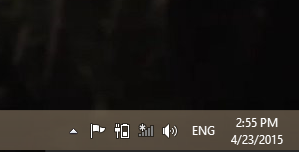
- From Desktop:
Click wireless icon in taskbar on the lower right hand side of the screen
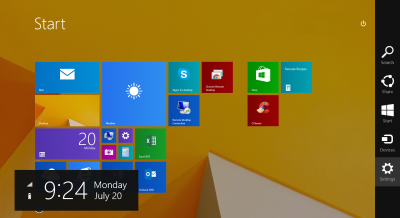
- From Metro Desktop:
- Open charm menu by pointing cursor to the top right corner of the screen, or swipe from the right of the screen if using a touch screen device, and click on settings.
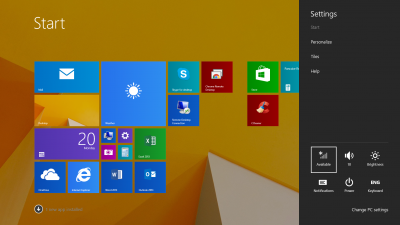
- Click the wireless icon on the right
- Open charm menu by pointing cursor to the top right corner of the screen, or swipe from the right of the screen if using a touch screen device, and click on settings.
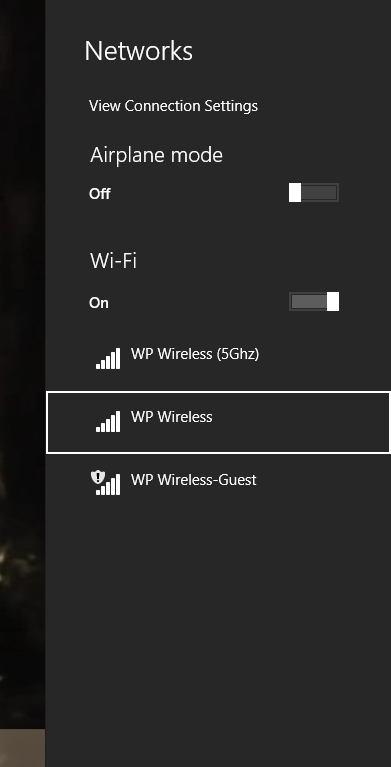
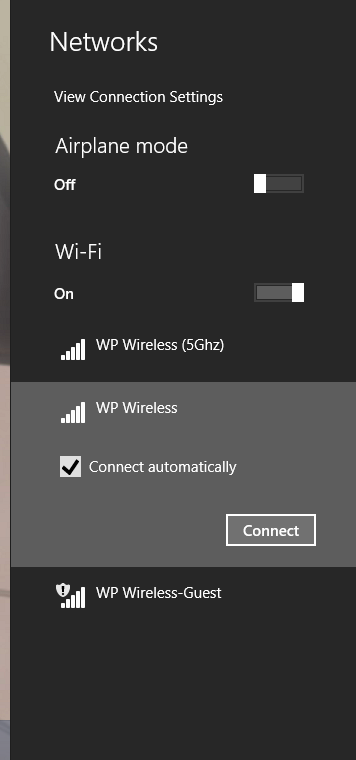
- Select WP Wireless from the network list
- Click Connect
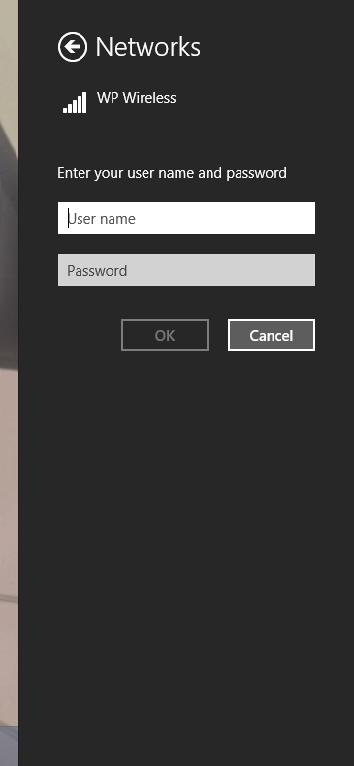
- You will then be prompted for a User name and Password. Enter in your WP Connect User name and Password. (Same password as your Email/Blackboard)
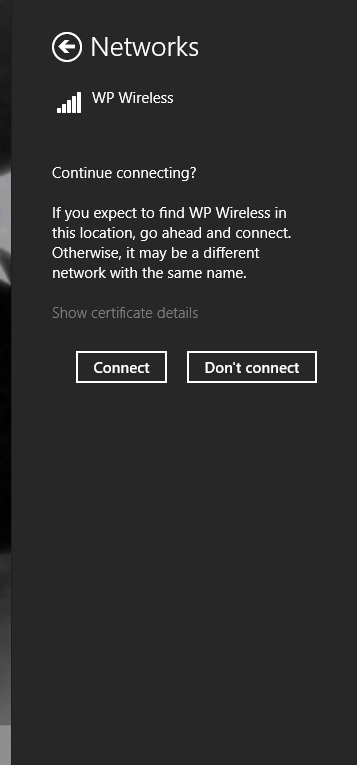
- You will then be asked to continue connecting. Click Connect.
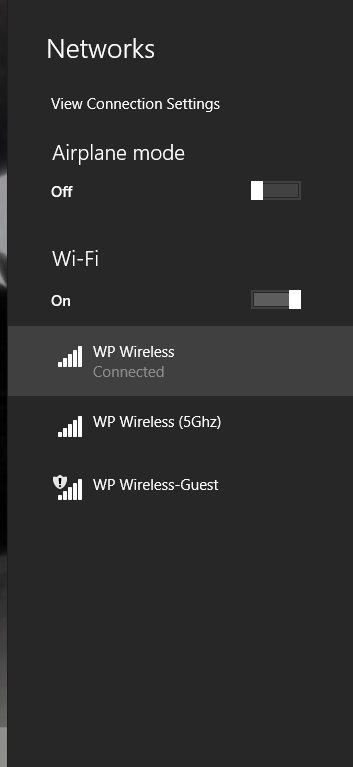
- After a successful connection you will see Connected under WP Wireless.


Please contact Help Desk Request if you are unable to connect.