SPSS Statistics is a software package used for statistical analysis.
==SPSS for Home Use==
==SPSS for Home Use==
SPSS for Home Use is available to faculty/staff members.
SPSS for Home Use on a personal computer is available to faculty/staff members and students.
IBM SPSS installations require the software to be downloaded through WPconnect and then activated with an authorization code.
Please note that SPSS 24 for Mac OS X requires:
===Download SPSS to Personal Machine===
OS X 10.9 (Mavericks) or better.<br>
'''Uninstall any older versions of SPSS you have on your computer before installing latest version.'''
Apple Java 2014-001 ( http://support.apple.com/kb/dl1572)
Apple Java must be installed prior to installing SPSS 24
Students or employees seeking access to install SPSS for use on personal computers should use the following process:
#Login to WPconnect.
#Visit the Students tab (or Employees tab for employees) and search for or click on the My Home Use Software List - Student (found in the Technology Resources and Services section.)
#Find the 'IBM SPSS 31' (or the highest release listed) section and download the install file for your platform. (Windows 64-bit or macOS.)
===SPSS for Home Use On Windows:===
# '''Uninstall''' any older versions of SPSS you have on your computer before installing latest version.
# Install SPSS 31 by double-clicking the install file and following the on-screen prompts.
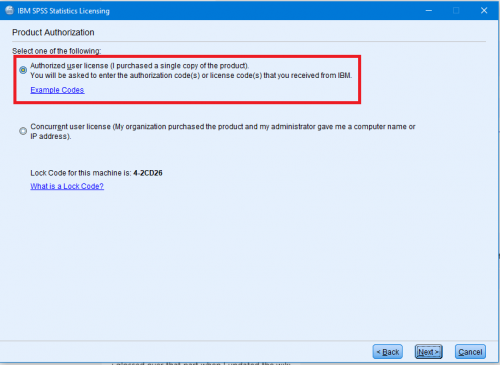
#Click '''Authorized user license'''<div class="toccolours mw-collapsible innercollapse" style="width:300px">[[File:spss2.3.PNG | 500px]]</div>
#Find activation key which can be found in the My Home Use Software section of WPConnect and enter code.
#Hit '''next''' to complete install.
===SPSS 26 for Home Use Installation Instructions===
===SPSS for Home Use on a Mac:===
Please note that SPSS 31 for macOS requires:
'''This process will take approx.. 30 minutes and will restart your computer. Please close all applications before starting.'''
macOS Sonoma 14.0 or higher.<br>
#Download pkg from WPConnect.
# Obtain and Download the Home Use Files from Information Technology - http://help.wpunj.edu
#Navigate to Downloads folder.
# Copy the install files to your hard drive (e.g. C:\temp) (Mac users check your Downloads folder)
#Double-click ISSCAS0_1.0_Other_Operating_Sy.pkg to run installer.
# Close all applications. This installation requires a restart.Install SPSS 26.0.0.1 for use at home.
#When the installer has completed SPSS 31 can be found in Launchpad. Reboot recommended.
# MacOS users: Make sure you have installed the Apple Java FIRST. Oracle Java JDK (JAVA SE appears to be required to install the software) (http://www.oracle.com/technetwork/java/javase/downloads/jdk9-downloads-3848520.html)
#Open SPSS
# Right-click SPSS_Statistics_26_xxxxx.exe and choose Run as administrator. <div class="toccolours mw-collapsible mw-collapsed" style="width:300px">[[File:SPSS26-01.png | 300px]]</div>
# MacOS Users: Double click the SPSS_Statistics_25_mac.dmg file to mount the disk image <div class="toccolours mw-collapsible mw-collapsed" style="width:300px">[[File:SPSS_24_Disk_Image.png | 300px]]</div>
#Find activation key which can be found in the My Home Use Software section of WPConnect and enter code.
#MacOS Users: Enter an administrator account and password <div class="toccolours mw-collapsible mw-collapsed" style="width:300px">[[File:SPSS 24 Installer Helper Prompt.png | 300px]]</div>
#Click '''Next''' through steps.
# Windows users: Click Yes to the User Account Control dialog if it appears. <div class="toccolours mw-collapsible mw-collapsed" style="width:300px">[[File:SPSS26-02.png]]</div>
File:SPSS26-02.PNG
# At the IBM SPSS Statistics 26 – InstallShield Wizard, click Next. <div class="toccolours mw-collapsible mw-collapsed" style="width:300px">[[File:SPSS26-03.png]]</div>
# Accept the license agreement and click Next. <div class="toccolours mw-collapsible mw-collapsed" style="width:300px">[[File:SPSS26-04.png | 300px]]</div>
#MacOS Users: Keep the "Yes" radio button clicked for Essentials for Python <div class="toccolours mw-collapsible mw-collapsed" style="width:300px">[[File:SPSS 24 Essentials for Python.png | 300px]]</div>
# Accept the license agreement and click Next. <div class="toccolours mw-collapsible mw-collapsed" style="width:300px">[[File:SPSS26-06.png | 300px]]</div>
# Accept the license agreement and click Next. <div class="toccolours mw-collapsible mw-collapsed" style="width:300px">[[File:SPSS26-07.png | 300px]]</div>
# Please wait while the software is installed. <div class="toccolours mw-collapsible mw-collapsed" style="width:300px">[[File:SPSS25-10.png | 300px]]</div>
# A command window will appear during the installation. Wait for it to disappear on its own. <div class="toccolours mw-collapsible mw-collapsed" style="width:300px">[[File:SPSS26-10.png | 300px]]</div>
# When the installation is completed '''Un-check''' the box that says Start IBM SPSS Statistics 26 now and click Finish. <div class="toccolours mw-collapsible mw-collapsed" style="width:300px">[[File:SPSS26-011.png | 300px]]</div>
# Navigate to the 26.0.0.1 patch. Right-click 26.0-IM-S25STATIC-WIN64-FP001.exe and choose Run as administrator. <div class="toccolours mw-collapsible mw-collapsed" style="width:300px">[[File:SPSS26-21.png | 300px]]</div>
#MacOS users: Double click on the 25.0-IM-S25STATC-Mac-FP001 disk image.
#MacOS users: Double click the SPSS_Statistics_Installer_Patch application.
# Windows users: Click Yes on the User Account Control dialog. <div class="toccolours mw-collapsible mw-collapsed" style="width:300px">[[File:SPSS25-14.png | 300px]]</div>
# Wait while the software is installed. <div class="toccolours mw-collapsible mw-collapsed" style="width:300px">[[File:SPSS26-26.png | 300px]]</div>
# Click OK. <div class="toccolours mw-collapsible mw-collapsed" style="width:300px">[[File:SPSS26-29.png | 300px]]</div>
# Click Yes to '''restart''' your computer. (MacOS users: You will not be required to reboot)<div class="toccolours mw-collapsible mw-collapsed" style="width:300px">[[File:SPSS26-30.png | 300px]]</div>
# '''After your computer restarts''', find '''IBM SPSS Statistics 26 License Authorization Wizard''' in your start menu and select it. <div class="toccolours mw-collapsible mw-collapsed" style="width:300px">[[File:SPSS26-15.png | 300px]]</div>
#MacOS users: open the SPSS Statistics Authorization Wizard located in /Applications/IBM/SPSS/Statistics/24/. You can also do a Spotlight Search <div class="toccolours mw-collapsible mw-collapsed" style="width:300px">[[File:SPSS 24 Spotlight Authorization Wizard.png | 300px]]</div>
# Windows users: Click Yes on the User Account Control dialog. <div class="toccolours mw-collapsible mw-collapsed" style="width:300px">[[File:SPSS25-22.png | 300px]]</div>
# Leave the first radio button selected and click Next. (You may wish to save your Lock Code for future reference in case there are any problems with licensing.) <div class="toccolours mw-collapsible mw-collapsed" style="width:300px">[[File:SPSS25-24.png | 300px]]</div>
# Enter the 20-digit code you received from WPU in the text field. Use copy and paste to avoid transposition errors and/or typos. Click Next. <div class="toccolours mw-collapsible mw-collapsed" style="width:300px">[[File:SPSS26-18.png | 300px]]</div>
# When the activation is complete you will be presented with a success message. You may wish to copy this and save it for future reference. Click Next. <div class="toccolours mw-collapsible mw-collapsed" style="width:300px">[[File:SPSS25-26.png | 300px]]</div>
# Review licensing information and click Finish. <div class="toccolours mw-collapsible mw-collapsed" style="width:300px">[[File:SPSS25-27.png | 300px]]</div>
# You are now able to run SPSS 26.
==Resources==
==Resources==
Line 71:
Line 45:
[[category:Software Guides]]
[[category:Software Guides]]
[[category:TC Portal]]
[[category:TC Portal]]
==SPSS on Campus==
If you need SPSS on university owned and managed computer, the software is available for installation via the [[Software Center]].
===SPSS Commuter License for a University Managed Computer===
If SPSS on a university imaged computer needs to be used off campus and without a VPN connection, there is an option to use the Commuter License. This needs to be initially set up while on campus or connected to VPN. The commuter license can have a maximum duration of up to 30 days.
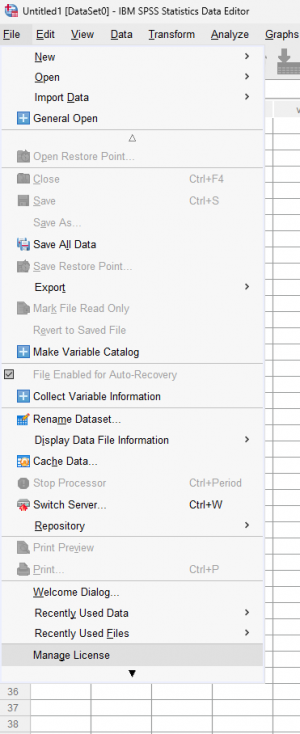
# Go to '''File''' - '''Manage License''' towards the bottom of the menu <div class="toccolours mw-collapsible mw-collapsed" style="width:450px">[[File:SPSS-01.PNG | 300px]]</div>
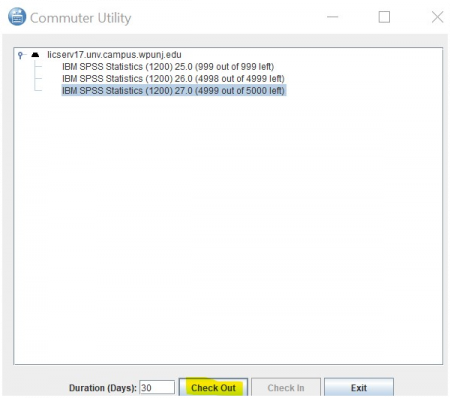
#Chage '''Duration (Days)''' to the appropriate time frame (30 days max). Select '''Check Out'''. You can now use SPSS without being connected to the campus network. <div class="toccolours mw-collapsible mw-collapsed" style="width:600px">[[File:SPSS-03.PNG | 600px]]</div>
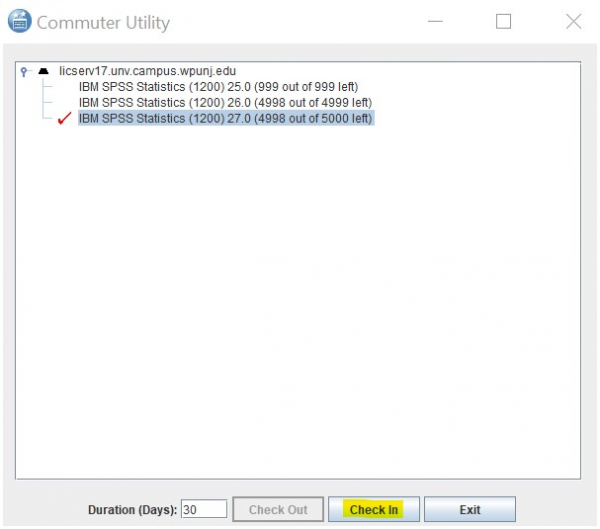
# Select "Check In" when you are ready to use SPSS on campus again.
SPSS for Home Use on a personal computer is available to faculty/staff members and students.
IBM SPSS installations require the software to be downloaded through WPconnect and then activated with an authorization code.
Download SPSS to Personal Machine
Uninstall any older versions of SPSS you have on your computer before installing latest version.
Students or employees seeking access to install SPSS for use on personal computers should use the following process:
Login to WPconnect.
Visit the Students tab (or Employees tab for employees) and search for or click on the My Home Use Software List - Student (found in the Technology Resources and Services section.)
Find the 'IBM SPSS 31' (or the highest release listed) section and download the install file for your platform. (Windows 64-bit or macOS.)
SPSS for Home Use On Windows:
Uninstall any older versions of SPSS you have on your computer before installing latest version.
Install SPSS 31 by double-clicking the install file and following the on-screen prompts.
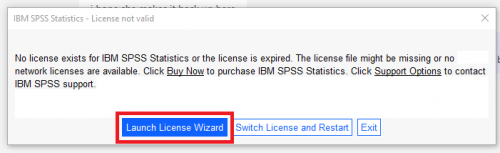
Click Launch License Wizard when prompted.
Click Next through steps.
Click Authorized user license
Find activation key which can be found in the My Home Use Software section of WPConnect and enter code.
Hit next to complete install.
SPSS for Home Use on a Mac:
Please note that SPSS 31 for macOS requires:
macOS Sonoma 14.0 or higher.
Download pkg from WPConnect.
Navigate to Downloads folder.
Double-click ISSCAS0_1.0_Other_Operating_Sy.pkg to run installer.
When the installer has completed SPSS 31 can be found in Launchpad. Reboot recommended.
Open SPSS
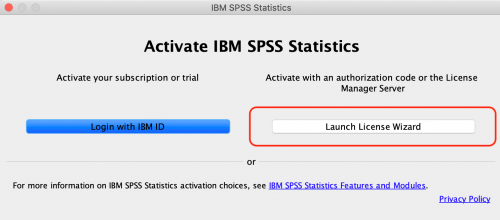
Click Launch License Wizard when prompted.
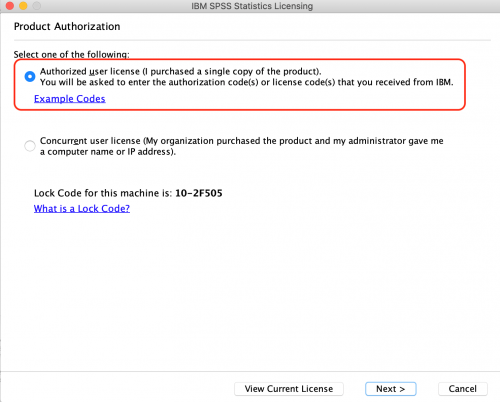
Click Authorized user license
Find activation key which can be found in the My Home Use Software section of WPConnect and enter code.
If you need SPSS on university owned and managed computer, the software is available for installation via the Software Center.
SPSS Commuter License for a University Managed Computer
If SPSS on a university imaged computer needs to be used off campus and without a VPN connection, there is an option to use the Commuter License. This needs to be initially set up while on campus or connected to VPN. The commuter license can have a maximum duration of up to 30 days.
Go to File - Manage License towards the bottom of the menu
Select Launch Commuter Utility Tool
Chage Duration (Days) to the appropriate time frame (30 days max). Select Check Out. You can now use SPSS without being connected to the campus network.
Select "Check In" when you are ready to use SPSS on campus again.